
Companion
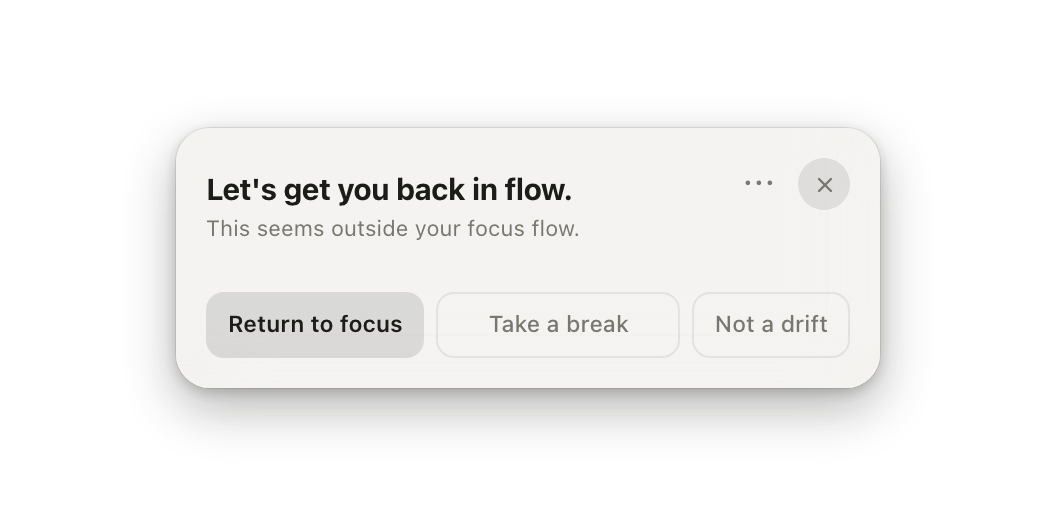
Companion is the quieter recovery surface. It stays near the Mac menu bar or Windows system tray as a compact focus status. When drift is confirmed, it expands into a decision card and makes the next move clear.
When a card appears
Section titled “When a card appears”The card appears after drift is confirmed, not after every context switch. A short look at a site is not enough. Companion waits until the drift is real enough to interrupt.
The three actions
Section titled “The three actions”- Return to focus brings you back to the last focus surface when it is still available.
- Take a break marks the interruption as rest instead of drift.
- Not a drift corrects the classification. Use this when the site or app was actually part of the work.
Those corrections matter. They keep later alarms from treating the same work as drift.
Wording and language
Section titled “Wording and language”Cards follow the language you choose in Settings → General. Korean users see Korean cards and notifications by default. To change the words themselves, open Settings → Companion & Alerts → Alert wording: each card’s title, description, and buttons can be edited, and a field left empty falls back to the default. Your edits stay in place when you switch languages; everything you did not edit follows the new language.
System notifications
Section titled “System notifications”The Companion card is the drift alert. If you also want a system notification, turn it on in Settings → Companion & Alerts. On Mac, macOS asks once whether drifty may send notifications, and Settings → General → Permissions shows the answer. Windows allows them by default. To turn them off or change how they look, use System Settings → Notifications on Mac or Settings → System → Notifications on Windows. When the card cannot be shown at all, drifty sends the notification so the alert is not lost.
Celebrations, day review, and quiet hours
Section titled “Celebrations, day review, and quiet hours”The same page has a switch for focus celebrations (3, 5, and 8 hours of focus, focus records, leaderboard results) and for the day review, with the review time beside it. The day review arrives as a system notification on the evening it belongs to: from your review time until two hours before your day ends (with the default 4 AM day start and 8 PM review time, between 8 PM and 2 AM), while you are at the Mac and once the day has three tracked hours. It waits in Notification Center, and clicking it brings Drifty forward. The first time, macOS asks whether drifty may send notifications; while they are off for drifty the review cannot arrive, and Settings → Companion & Alerts says so. A review you were not there for, or one that could not be sent, is not sent later; that day stays in the dashboard. Quiet hours pauses drift alerts, automatic close, celebrations, and the day review for a daily window you choose, for example 22:00 to 08:00. Tracking continues, and a drift that started during quiet hours is raised as soon as the window ends.
Menu bar and system tray
Section titled “Menu bar and system tray”Companion cards stay close to the drifty icon in the Mac menu bar or Windows system tray. They do not need the main window; act on confirmed drift from there or open the dashboard.